
Bluehost Hosting Down? How to Troubleshoot and Get Your Site Back Online
Is your website not loading? Learn how to determine if Bluehost is down, how to check server status, and the most common reasons why your site might be inaccessible in 2026.
 John Toledo
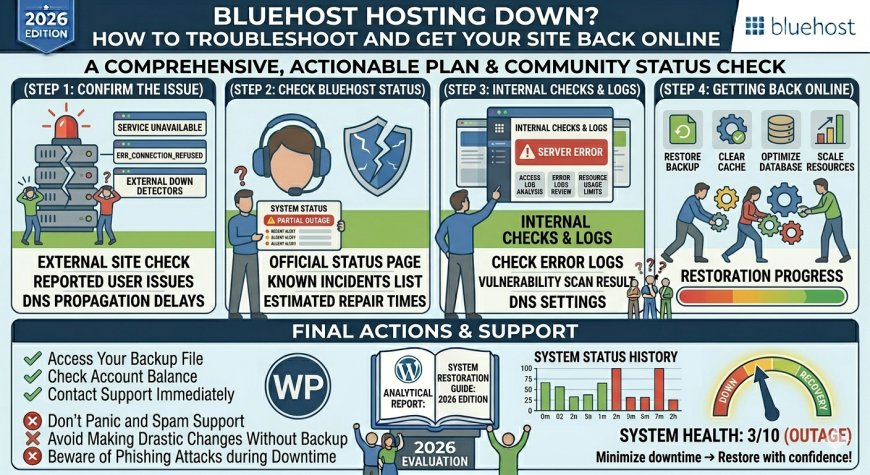
There is nothing more frustrating for a site owner than seeing a "Site Inaccessible" error. If your website is currently not loading, your first reaction might be to panic. However, before assuming the worst, it is important to follow a systematic approach to identify the root cause. Here is your step-by-step guide to troubleshooting downtime when using Bluehost.
1. Check if the Issue is Global (Bluehost Status)
The first step is to determine if the problem is on Bluehost’s end or yours.
-
Visit the Official Status Page: Check
Bluehost’s Status Page -
Use Third-Party Tools: Sites like DownDetector or IsItDownRightNow can tell you if other users are reporting issues with Bluehost servers in your region.
2. Isolate the Problem
If Bluehost is not experiencing a global outage, the problem is likely specific to your site or local network.
-
Clear Your Cache and Cookies: Sometimes, your browser holds onto old data that causes connection errors. Try opening your site in an Incognito/Private window or a different browser.
-
Test Your Internet Connection: Try accessing your site using your mobile data instead of your home or office Wi-Fi. If it loads on mobile, the issue might be with your local network or IP address being blocked by the server firewall.
-
Check Your Domain Name: Has your domain expired? Sometimes, a site is "down" simply because the domain registration lapsed. Check your registrar (if it is not Bluehost) to ensure your status is "Active."
3. Check Your WordPress Environment
If you can access the Bluehost control panel but not your website, the issue is likely within your WordPress installation.
-
Recent Updates: Did you just update a plugin or theme? A corrupted update is the most common cause of the "White Screen of Death" or 500 Internal Server errors.
-
Disable Plugins: If you can access your site via FTP or the Bluehost File Manager, navigate to the
wp-contentfolder and rename yourpluginsfolder toplugins_old. This will deactivate all plugins. If the site loads, one of your plugins is the culprit.
4. Contacting Support
If you have ruled out all the above and your site is still down, it is time to contact Bluehost support.
-
Be Specific: Do not just say "My site is down." Tell them:
-
The specific error message you see (e.g., 500 Internal Server Error, 403 Forbidden).
-
The steps you have already taken to troubleshoot.
-
When the issue started.
-
-
Use Live Chat: This is usually the fastest way to get a technician to check your specific server node.
Frequently Asked Questions (FAQ)
1. How often does Bluehost go down? Bluehost maintains an uptime average of 99.9%. While true global outages are rare, local server maintenance or issues can occur. Most downtime experienced by users is typically due to site-specific misconfigurations rather than provider-wide failures.
2. What is a "500 Internal Server Error"? A 500 error is a generic message indicating something went wrong on the server, but it cannot be identified. This is often caused by an incompatible plugin, a corrupted .htaccess file, or exceeding your memory limit.
3. Will Bluehost notify me if my site is down? Bluehost generally does not send automated alerts for individual site downtime unless it is due to a server-wide outage. If you want real-time monitoring, consider using free tools like UptimeRobot or Jetpack Monitor, which will email you immediately if your site goes offline.