How to Set Up Your First VPS Server: A Step-by-Step Guide for 2026
Ready to take full control of your infrastructure? Follow our step-by-step guide to deploying, securing, and configuring your first VPS server like a professional.
 John
John

How to Set Up Your First VPS Server: A Step-by-Step Guide for 2026
Moving from shared hosting to a Virtual Private Server (VPS) is the ultimate milestone for any webmaster. It grants you total control, better security, and significantly faster performance. But once you sign up for your first VPS, what comes next?
In this guide, we will walk you through the essential steps to deploy and "harden" your server to make it production-ready.
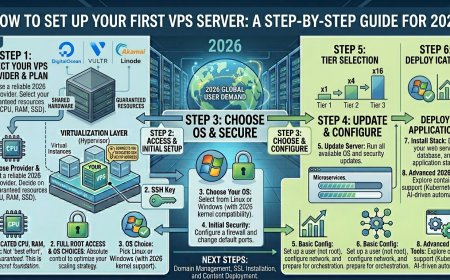
1. Initial Access via SSH
Once your provider (e.g., DigitalOcean, Vultr, or Linode) provisions your server, you will receive an IP address and a root password.
-
Connect via terminal: Open your terminal (or PuTTY on Windows) and run:
ssh root@your_server_ip -
Change your password immediately: The first thing you should do is set a strong, unique root password to ensure your initial entry point is secure.
2. Create a New User (Don't use Root!)
Running everything as the root user is a major security risk. If you make a mistake, you could delete your entire system.
-
Create a user:
adduser username -
Give sudo privileges:
usermod -aG sudo usernameNow, log out and log back in as your new user.
3. Configure SSH Key Authentication
Passwords can be guessed or intercepted. SSH keys are virtually uncrackable.
-
Generate a key on your local machine (
ssh-keygen). -
Copy the key to your server:
ssh-copy-id username@your_server_ip. -
Once you confirm it works, disable password-based logins in the SSH config file (
/etc/ssh/sshd_config). This is the #1 step to stopping automated bot attacks.
4. Set Up a Firewall (UFW)
You don't want every port on your server open to the world.
-
Install UFW (Uncomplicated Firewall):
sudo apt install ufw -
Allow only what you need:
sudo ufw allow OpenSSHsudo ufw allow 'Nginx Full'(or Apache) -
Enable it:
sudo ufw enable
5. Install Your Web Stack (LEMP/LAMP)
Now that your server is secure, you need the software to run your site. Most professional publishers use the LEMP Stack (Linux, Nginx, MySQL, PHP) for its speed:
-
Update packages:
sudo apt update && sudo apt upgrade -
Install Nginx:
sudo apt install nginx -
Install MySQL/MariaDB: This will serve as your database.
-
Install PHP-FPM: This allows your server to process dynamic content.
6. Configure Your Domain and SSL
Point your domain's DNS "A Record" to your server's IP address. Once the connection is live:
-
Install Certbot: This is the standard tool for getting a free Let's Encrypt SSL certificate.
-
Run:
sudo certbot --nginxYour site is now encrypted and ready for production.
Expert Tip: Infrastructure as a Habit
In 2026, don't try to manage raw code on the server if you don't have to. Using a modern Control Panel (like xCloud, RunCloud, or SpinupWP) can automate steps 4, 5, and 6 for you. These tools connect to your VPS and handle the complex configuration, allowing you to deploy sites in minutes while maintaining professional security standards.
Final Thoughts
Setting up a VPS might feel intimidating, but it is a repeatable process. Once you have done it once, you will have a deep understanding of how your infrastructure works. By securing your SSH access, enabling a firewall, and automating your SSL, you are already ahead of 90% of website owners.
Pro-Tip: Before making your site live, take a "Snapshot" of your server through your hosting provider's dashboard. This is a complete backup of your current state, allowing you to restore your server in seconds if you ever accidentally break a configuration.