How to Access Your Bluehost WordPress Login: A Step-by-Step Guide
Struggling to find your WordPress login on Bluehost? Learn the fastest ways to access your admin dashboard, troubleshoot common login errors, and keep your site secure in 2026.
 John Toledo
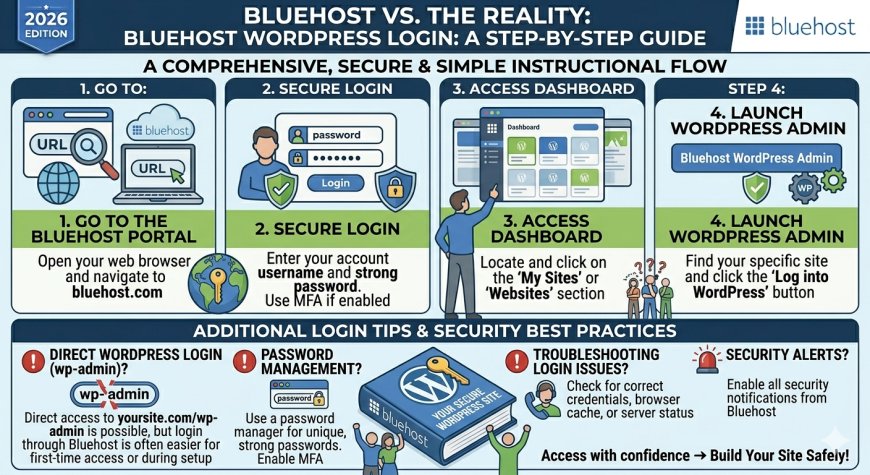
Accessing your WordPress dashboard is the first step toward managing your content, themes, and plugins. If you are using Bluehost, there are multiple ways to reach your admin area. Whether you prefer the Bluehost portal or the standard WordPress login, this guide covers everything you need to know.
Method 1: The Bluehost Dashboard (Easiest for Beginners)
If you are already logged into your Bluehost account, you do not need to remember your WordPress password.
-
Log in to your Bluehost Control Panel.
-
Navigate to the Websites tab in the left-hand menu.
-
Find your domain in the list.
-
Click the WordPress Admin button. This will automatically log you into your WordPress dashboard as an administrator.
Method 2: Direct Login (The Quickest Way)
If you want to bypass the hosting panel, you can access your site directly through your browser.
-
The Default URL: Simply add
/wp-adminto your domain. For example:[www.yourdomain.com/wp-admin](https://www.yourdomain.com/wp-admin). -
Alternative: You can also use
[www.yourdomain.com/wp-login.php](https://www.yourdomain.com/wp-login.php).
Once you land on the page, enter your WordPress username and password to enter the dashboard.
Troubleshooting Common Login Issues
Sometimes, things do not go as planned. If you are stuck at the login screen, try these quick fixes:
-
Forgot your password? Click the "Lost your password?" link on the login page to receive a reset link via email. If you do not receive the email, you can reset it directly through your Bluehost dashboard under the Users settings.
-
404 Error on Login Page: This often happens if you have a security plugin that has changed your login URL. Check your plugin settings or deactivate security plugins via your hosting file manager if necessary.
-
White Screen of Death (WSOD): This usually indicates a plugin or theme conflict. Try renaming your "plugins" folder via FTP/File Manager to temporarily disable them and see if the login page reappears.
-
Redirect Loops: Clear your browser cache and cookies, or try accessing your site in an Incognito/Private window.
Security Tips for Your Login
Because your login page is the gateway to your entire site, it is a primary target for hackers.
-
Use Strong Passwords: Never use simple passwords.
-
Limit Login Attempts: Install a plugin that locks out IP addresses after multiple failed login attempts.
-
Enable 2FA: Adding Two-Factor Authentication is the single most effective way to prevent unauthorized access to your dashboard.
Frequently Asked Questions (FAQ)
1. Can I change my WordPress login URL? Yes. Many security plugins (like WPS Hide Login) allow you to change your URL from /wp-admin to something custom (e.g., /my-secret-entry). Just ensure you save this new URL somewhere safe, or you will lose access to your own dashboard.
2. Why does Bluehost log me out automatically? WordPress has a default session timeout for security reasons. If you want to stay logged in longer, look for the "Remember Me" checkbox on the login screen. If you are still being kicked out, it may be due to your browser cookies being cleared or a conflict with a security plugin.
3. What if I don't know my WordPress username or password? If you have access to your Bluehost account, go to the Websites tab, select your site, and manage your Users. You can see your existing administrative users there and, if necessary, reset the password for any user account instantly.